Pair your phone
Pairing is the primary mobile sign-in path: generate a one-time QR in the console, scan it from the app, and OpsPing configures the backend URL and signs you in as the current web user.
- Signed in to the admin console on a computer (you'll generate the code here and scan it with your phone).
- The OpsPing mobile app installed on your phone. No separate server setup is required before pairing.
The pairing QR carries the backend destination and a single-use sign-in token. Treat it like a temporary credential.
-
Open Settings → Mobile app
In the admin console, open Settings → Mobile app and select Generate QR code.
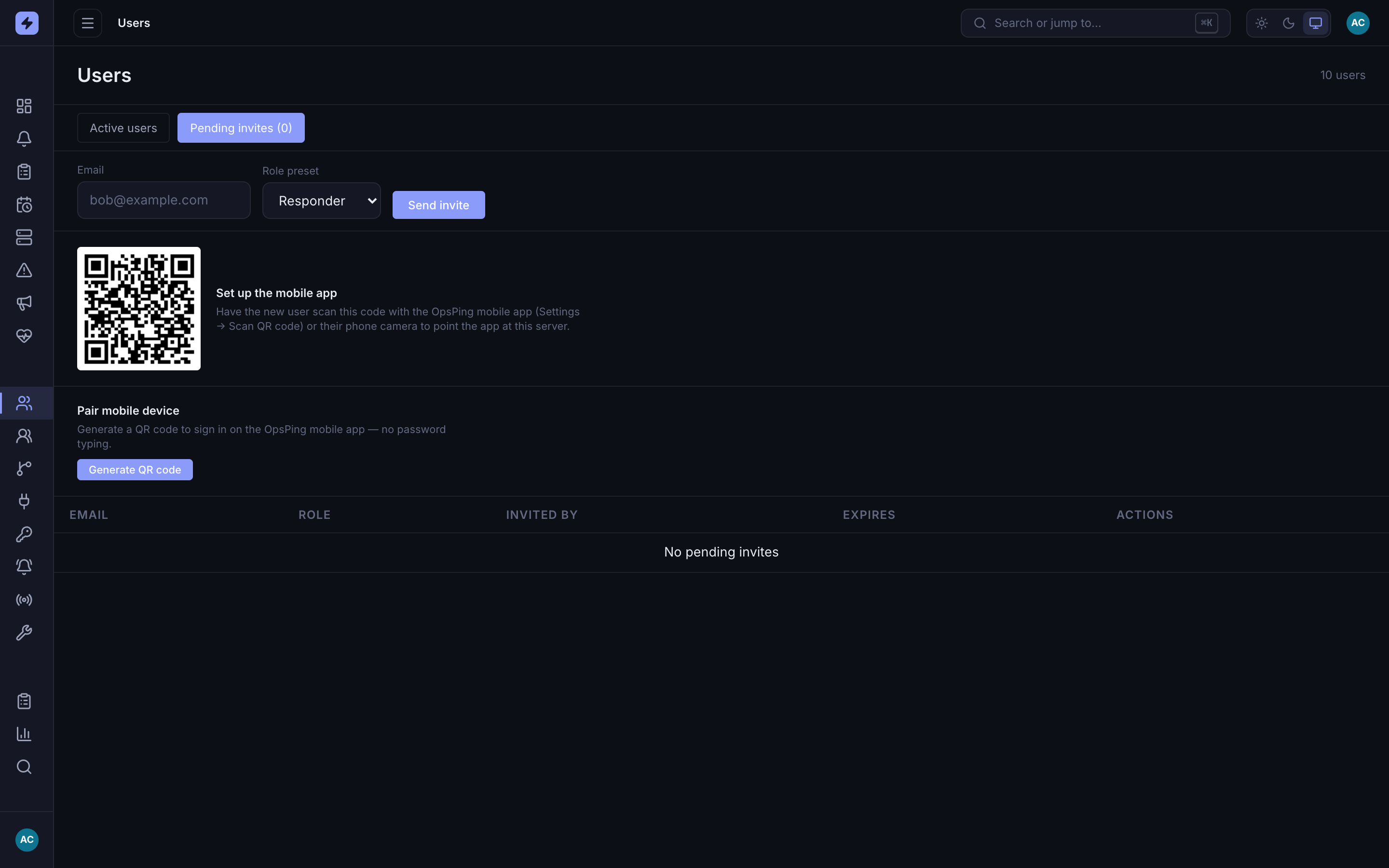
The self-service pairing panel lives in Settings → Mobile app. -
Generate the pairing code
Click Generate QR code. OpsPing mints a single-use code that signs in as you and displays it as a QR with a live countdown — it expires in five minutes.
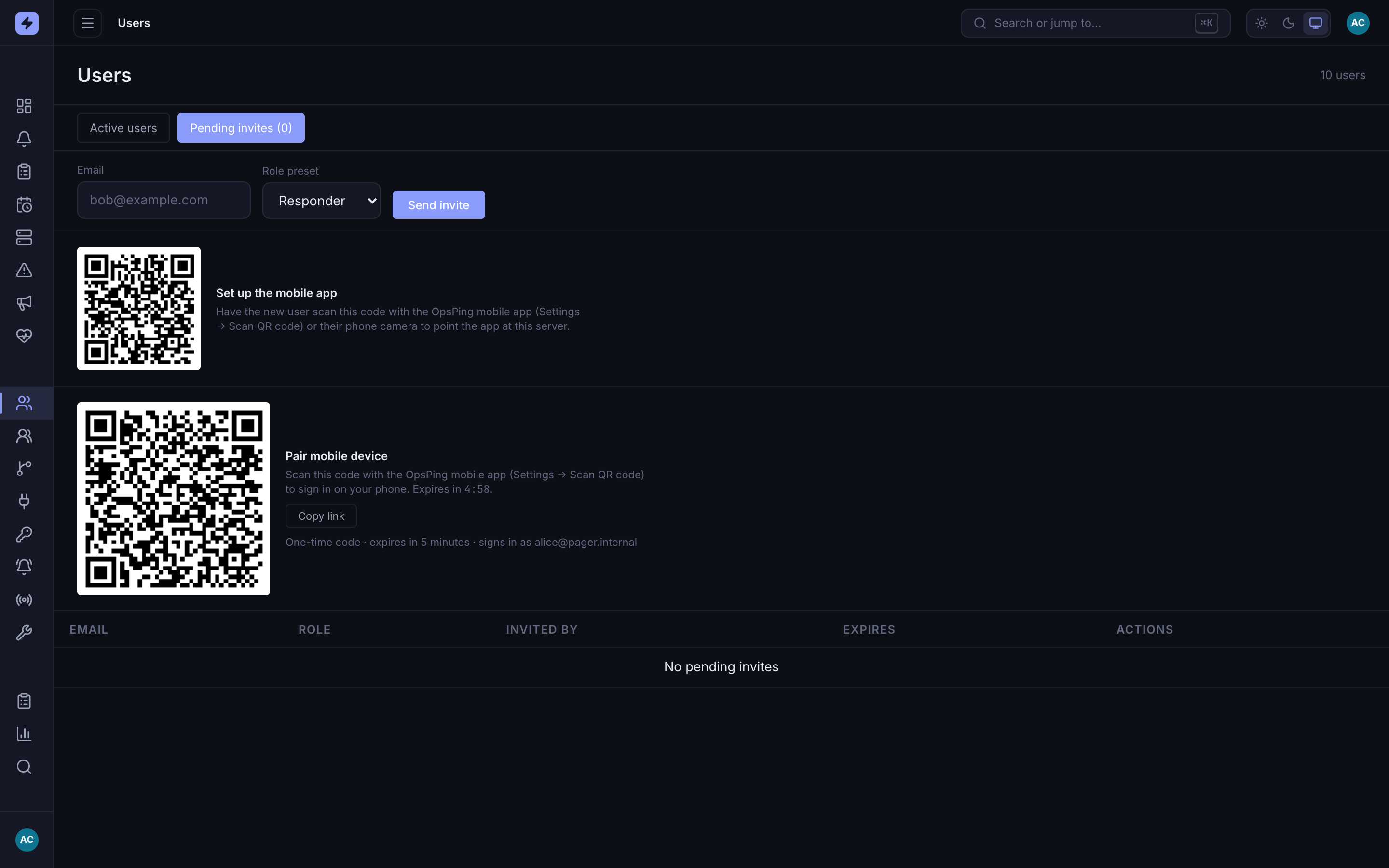
The generated code with its countdown. Copy link gives you the same opsping://pairURL as a link, handy if the camera scan won't take.WarningWhoever scans the code is signed in as you, with your full access. Only generate it on a screen you control, and let it expire unused if you don't end up scanning it — codes are single-use and self-destruct after five minutes regardless.
-
Scan it from the mobile app
On the welcome screen, tap Scan QR Code. If already signed in or configured, use Settings → Advanced → Scan QR code. Successful pairing establishes the session; new responders may see onboarding first, while stakeholders land on Status.
TipIf the scan keeps failing, click Copy link in the console and open the
opsping://pairURL on your phone instead (for example, email it to yourself and tap it there). It does the same thing as the scan.