Workspace settings
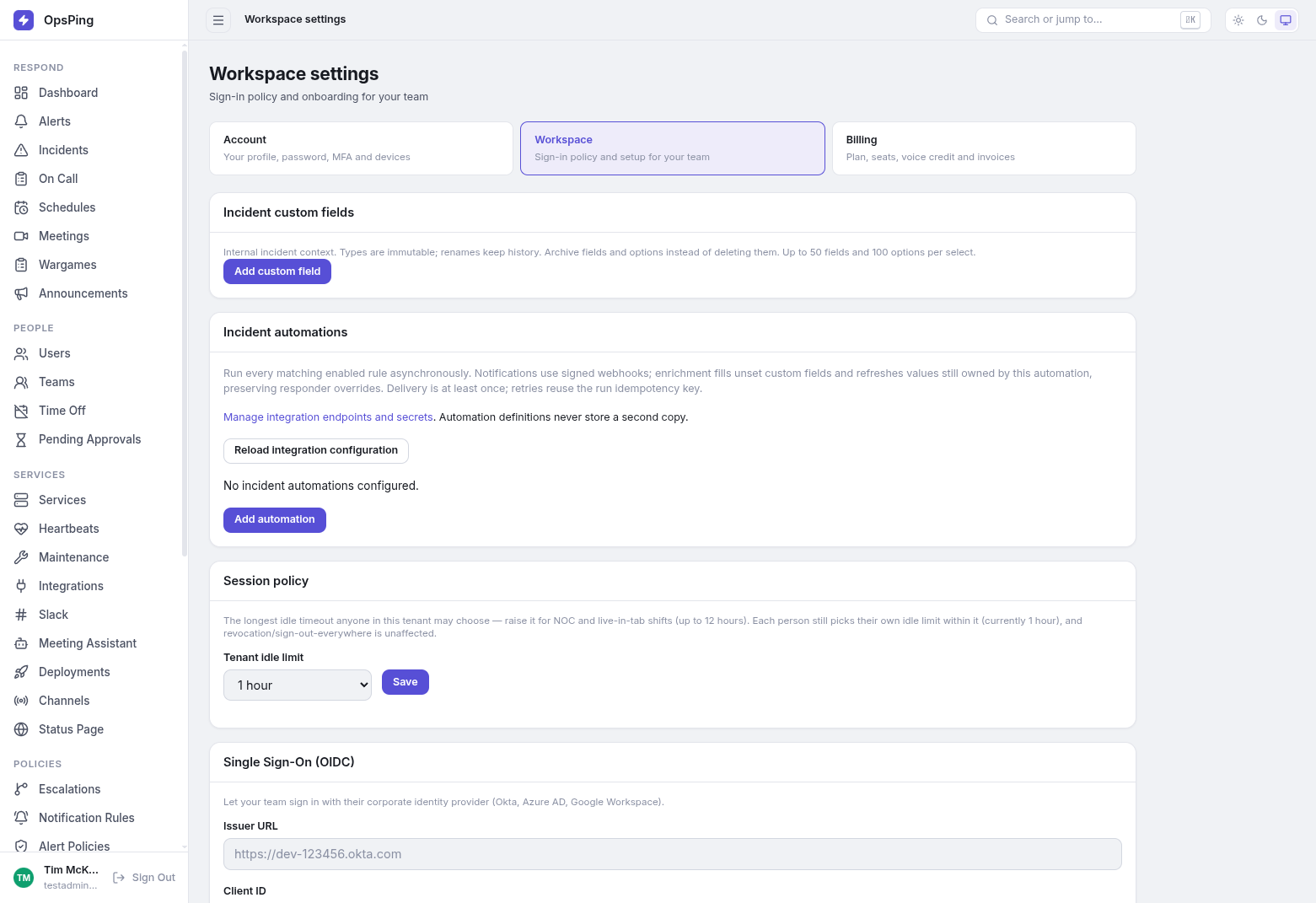
Workspace settings is the admin surface for sign-in policy and onboarding: incident custom fields, incident automations, the tenant session ceiling, team single sign-on, and the setup guide. Your own profile, password, MFA, and devices live under the Account tab; plans and invoices under Billing.
- Admin role. Finance-only accounts see Account and Billing but not Workspace; the API enforces the same split.
- For member management — invitations, roles, removal — see Teams & administration.
-
Incident custom fields
Add internal incident context fields for your workspace. Types are immutable after creation, renames keep history, and fields and their select options should be archived rather than deleted. Limit: up to 50 fields and 100 options per select field.
-
Incident automations
Every matching enabled rule runs asynchronously. Notifications use signed webhooks; enrichment fills unset custom fields and refreshes values still owned by the automation while preserving responder overrides. Delivery is at least once — retries reuse the run's idempotency key.
-
Session policy
The tenant idle limit is the longest idle timeout anyone in this workspace may choose — raise it for NOC and live-in-tab shifts, up to 12 hours. Each person still picks their own idle limit within it, and revocation / sign-out-everywhere is unaffected.
- Bounds — any value from 5 to 720 minutes; the select offers presets of 5, 15, 30, 60, 120, 240, 480, and 720 minutes plus the currently stored value, so a stored ceiling like 90 stays selectable.
- Display — values below 60 minutes render as minutes (e.g. "45 minutes"); 60 and above render as hours.
- Save — patches the tenant ceiling immediately; a toast confirms the new limit.
-
Single Sign-On (OIDC)
Let your team sign in with their corporate identity provider (Okta, Azure AD, Google Workspace). OIDC is configured per team — admins without a team membership pick the team first. Enter the Issuer URL and Client ID, and a Client Secret only when setting or updating it. Once saved, the SSO login URL (based on the team name) is shown to share with your team. See Single sign-on (SSO) for the full walkthrough.
-
Setup guide
Replay the teammate, schedule, escalation, service, and test-alert walkthrough at any time with Replay setup wizard.