Slack
Most incidents already get coordinated in Slack — the question is whether the paging tool knows that. The OpsPing Slack app brings alerts and acks into the channels where your team already works: Block Kit alert cards with Ack, Snooze, and Resolve buttons, slash commands, per-incident channels, and delivery rules that route alerts to the right place. This guide covers install, account linking, and daily use. For the feature overview, see the Slack ChatOps page.
- An OpsPing workspace with alerts flowing in, per Getting started.
- Permission to install apps in your Slack workspace (or a friendly workspace admin who has it).
- Each user who wants to act on alert cards must link their Slack account, below.
-
Get your manifest from OpsPing
In the admin console, open Slack in the left navigation (Services group). Before any workspace is connected, the page starts with the 1. Create the Slack app card — choose Get your manifest there. (Once a workspace is connected, the same control lives inside the Commands card.) OpsPing renders the exact Slack app manifest for your workspace — your command names (including any renames), the required scopes, Socket Mode turned on — with JSON and YAML tabs that match Slack's manifest editor, plus copy and download. Slack opens on its JSON tab, so the JSON pastes directly, no YAML wrangling.
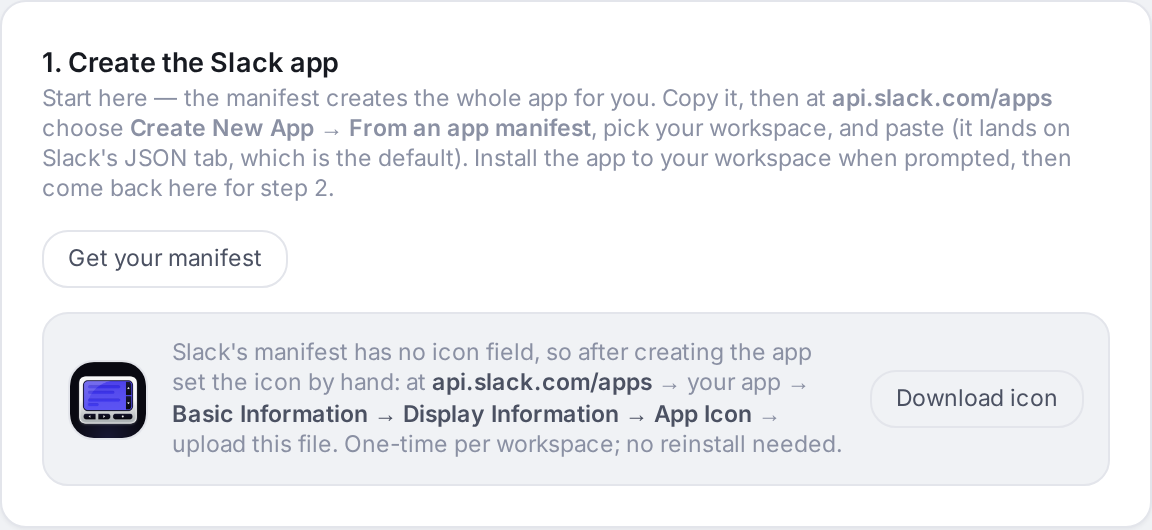
The top-level Slack page before a workspace is connected. Get your manifest renders the Slack app manifest from your command names and scopes. TipManifest command names come from Slack → Commands, so settle them before you create the Slack app. Renaming later is still easy — a manifest re-paste, no reinstall — see Troubleshooting.
-
Create the Slack app from the manifest
Go to
api.slack.com/apps, sign in, and choose Create an App → From a manifest. Pick your workspace, paste the OpsPing manifest into the JSON editor, and choose Next.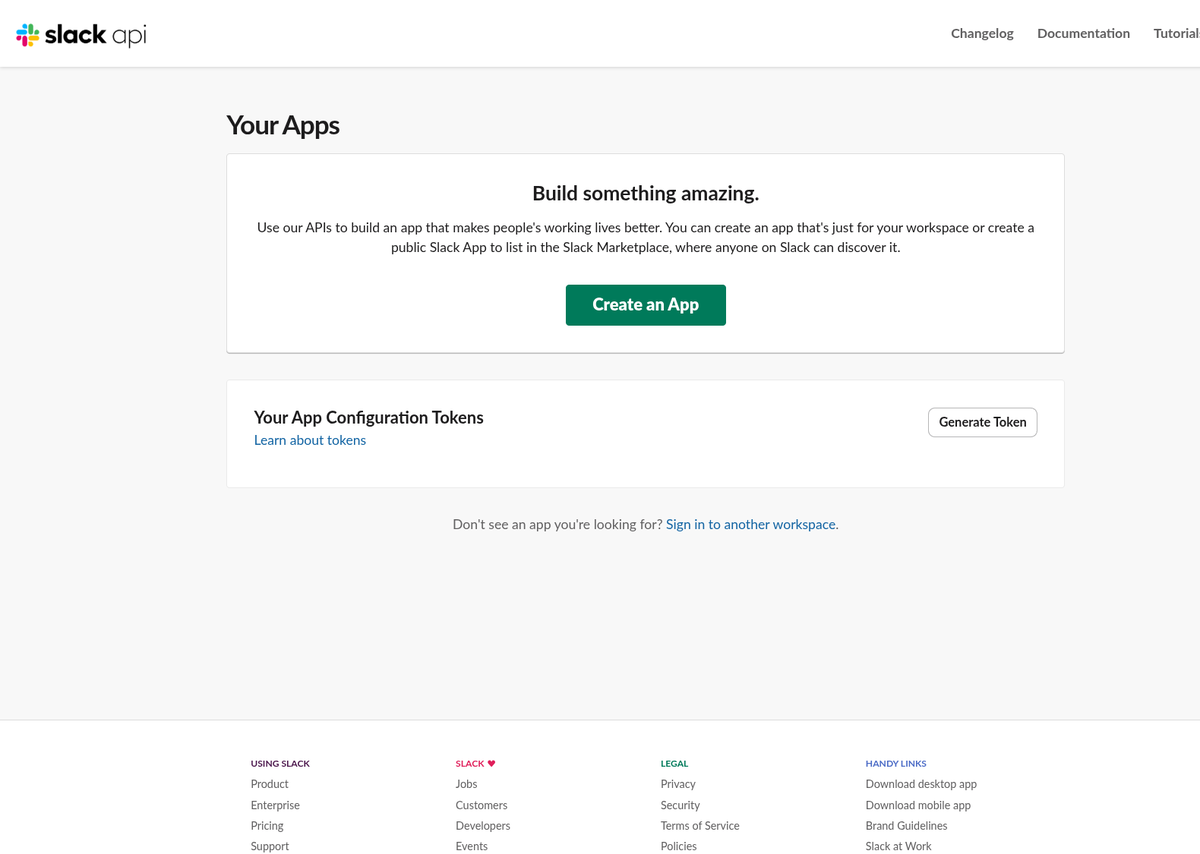
api.slack.com/apps, the starting point. Create an App → From a manifest. 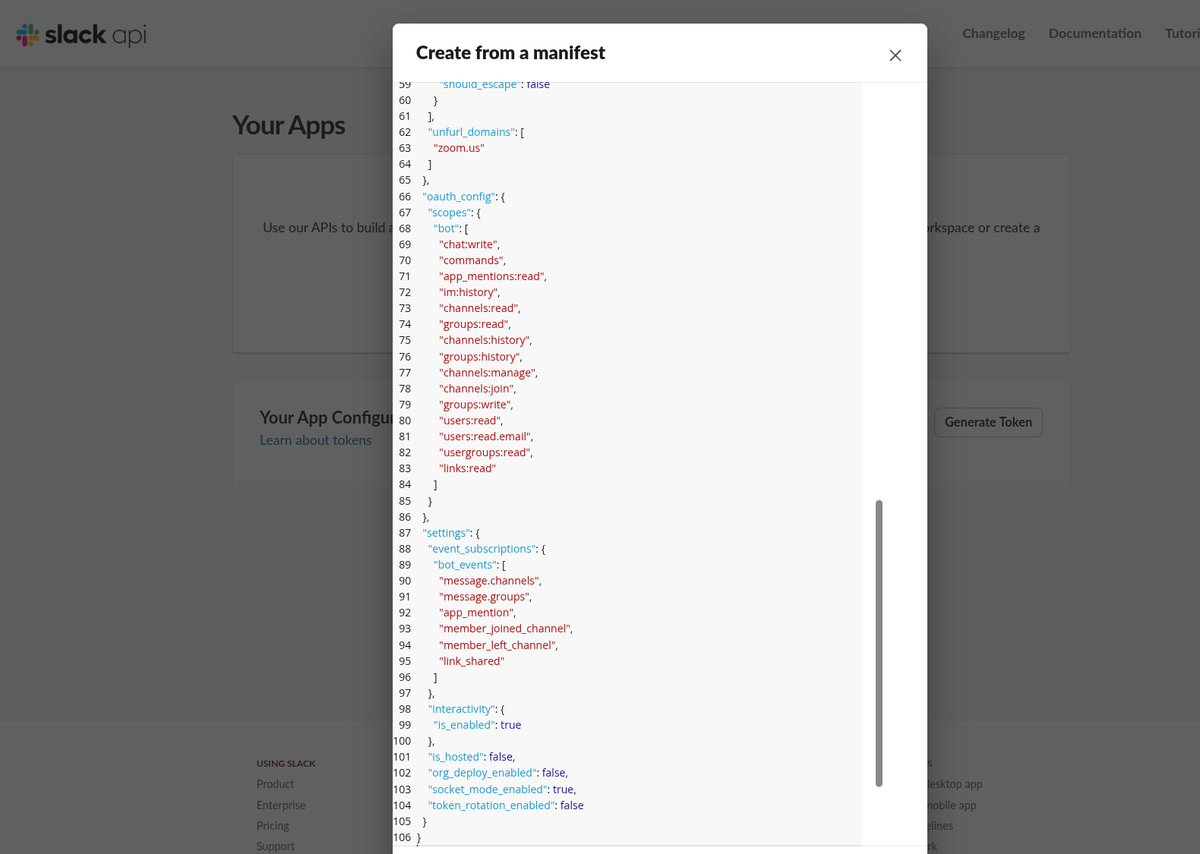
Paste the OpsPing manifest into the JSON editor — the tab Slack opens by default. Slack parses the manifest and shows Review your app, a summary of what it can do in your workspace. Choose Create, and the app appears in Your Apps. It exists now — it just isn't installed or connected yet.
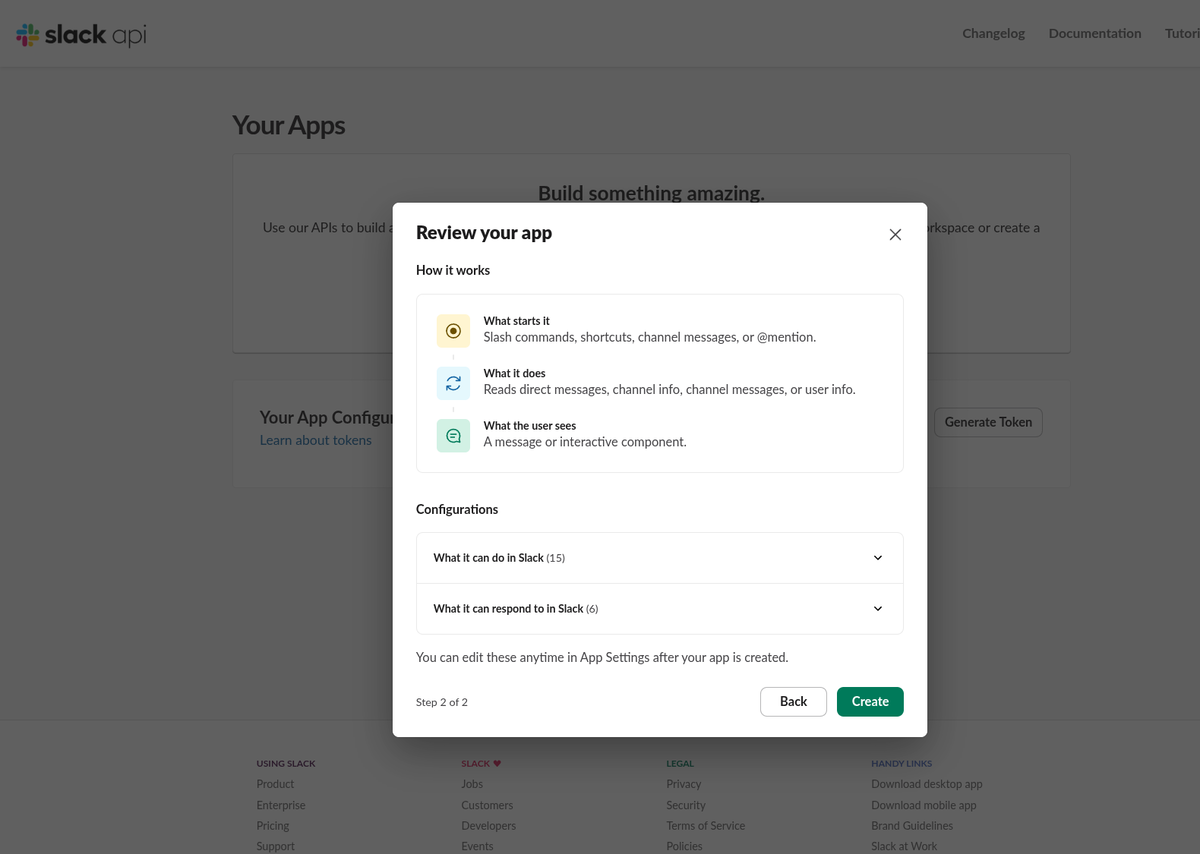
Review your app: Slack's summary of the scopes and features the manifest requests. 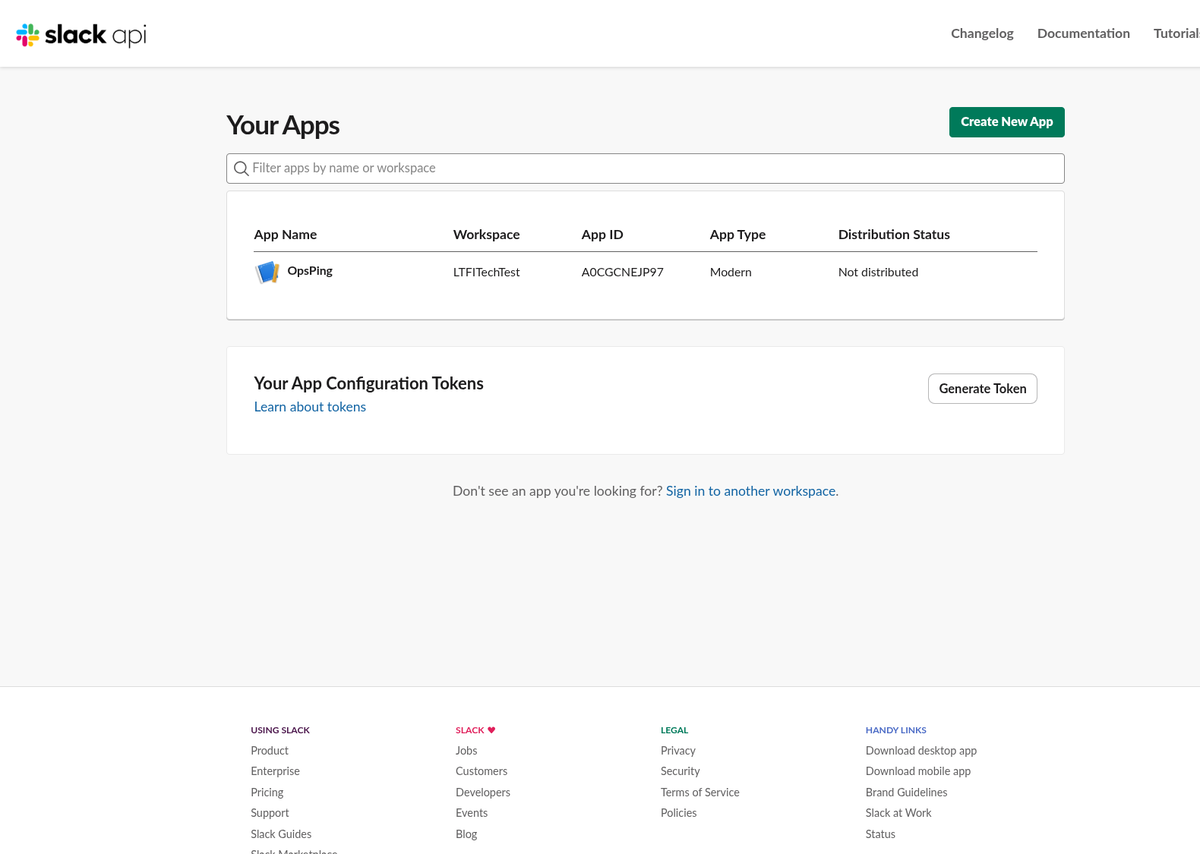
The app is created and listed under Your Apps. Install and credentials come next. Set the app icon. Slack manifests have no icon field, so the manifest can't carry OpsPing's icon and Slack shows a generic placeholder until you upload one. On the 1. Create the Slack app card in OpsPing, choose Download icon; then at api.slack.com open your app → Basic Information → Display Information → App Icon and upload the PNG. This is one-time per workspace — no reinstall needed.
-
Install the app to your workspace
In your app's settings, open Install App (under Settings in the left nav) and install it to your workspace. Slack shows the permission screen first: everything in the manifest's scope list, in plain English. Read it and choose Allow.
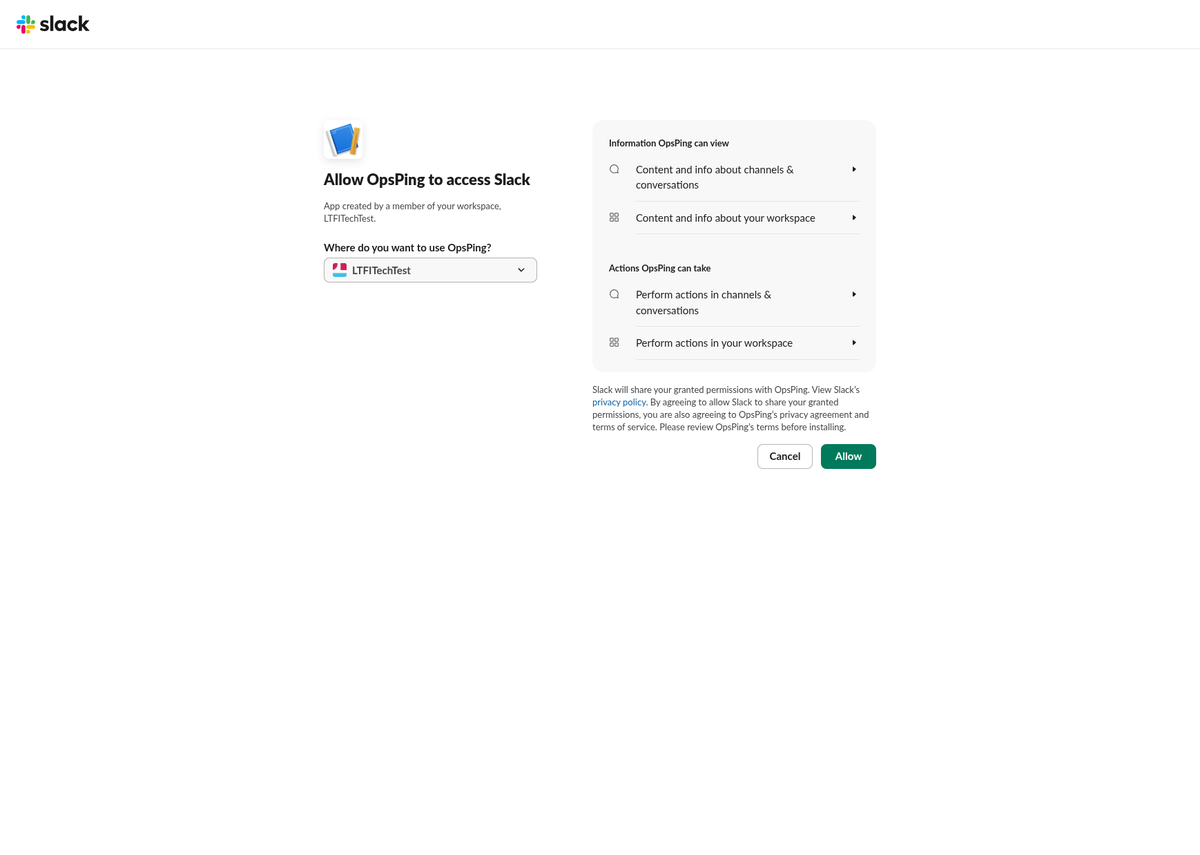
The OAuth permission screen before allowing. What it can view and what it can do map straight to the manifest's scopes. Back on the Install App page you get the green Success! banner. The app is in your workspace — next comes the credential handoff.
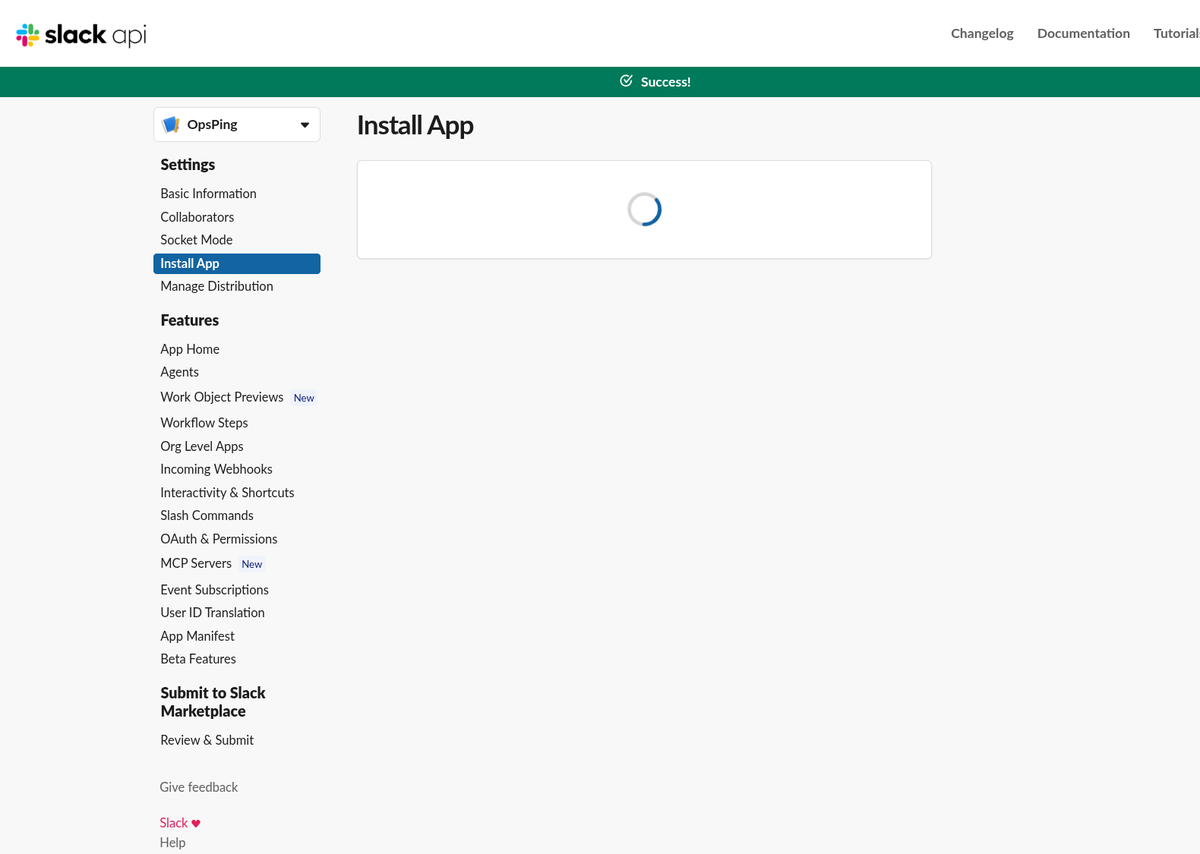
Installed. The bot token from this page is the first of the three credentials. -
Collect the three credentials
The OpsPing connect form wants three values, and each lives in a different corner of your app's settings on api.slack.com. This is the step that trips people up — one of them doesn't exist until you create it.
a) The bot token,
xoxb-…— the value for the Bot token field in OpsPing's connect form. On api.slack.com, open your app's Install App page (or OAuth & Permissions) and copy the Bot User OAuth Token. It only appears after step 3's install; use the Copy button.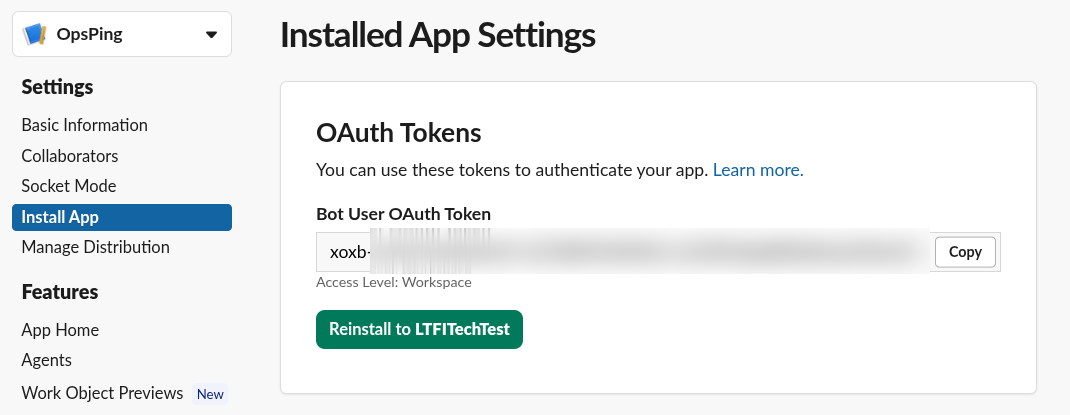
The xoxb-Bot User OAuth Token — Slack's name for what OpsPing's connect form calls the Bot token — lives in the OAuth Tokens card on the Install App page, only after the app is installed. (Token blurred here; keep yours secret.)b) The signing secret — Basic Information → App Credentials. Slack masks it; choose Show to reveal it and copy.
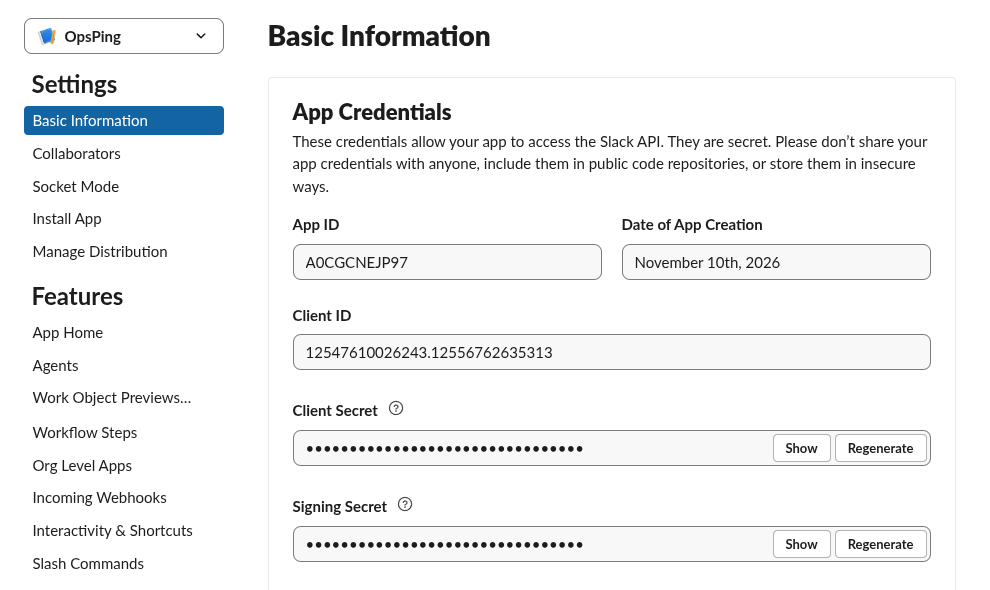
App Credentials on Basic Information. The signing secret is masked until you choose Show. c) The app-level token,
xapp-…— still on Basic Information, scroll down to App-Level Tokens and choose Generate Token and Scopes. Name the token, add theconnections:writescope, generate, and copy it. This token does not exist until you generate it — the Tokens table starts empty, and nothing in the install flow creates it for you.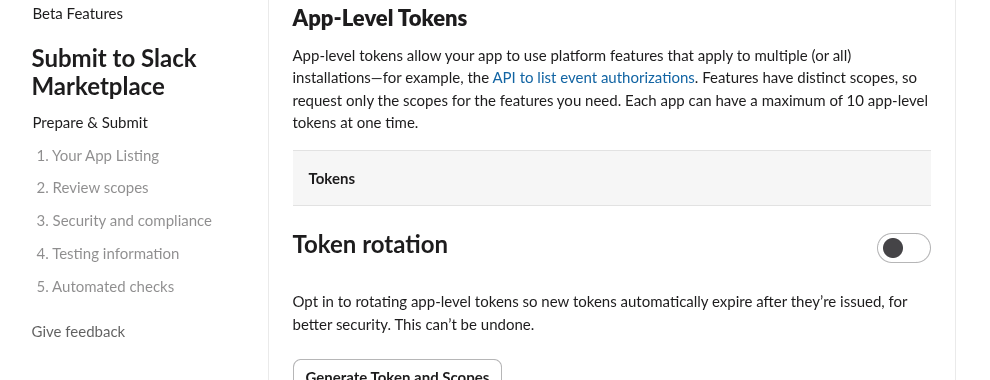
App-Level Tokens starts empty. Generate Token and Scopes is where the xapp-token comes from — add theconnections:writescope.The step everyone missesInstalling the app doesn't create the app-level token, and OpsPing's Socket Mode connection can't come up without it. Generate it with
connections:writebefore you touch the connect form. -
Connect OpsPing
Back in OpsPing's Slack settings (left navigation, Services group), fill the 2. Connect the workspace card: Bot token, Signing secret, and — with Connection mode left on Socket Mode (recommended) — App-level token. Choose Save connection: OpsPing validates all three tokens against Slack before saving and stores them encrypted.
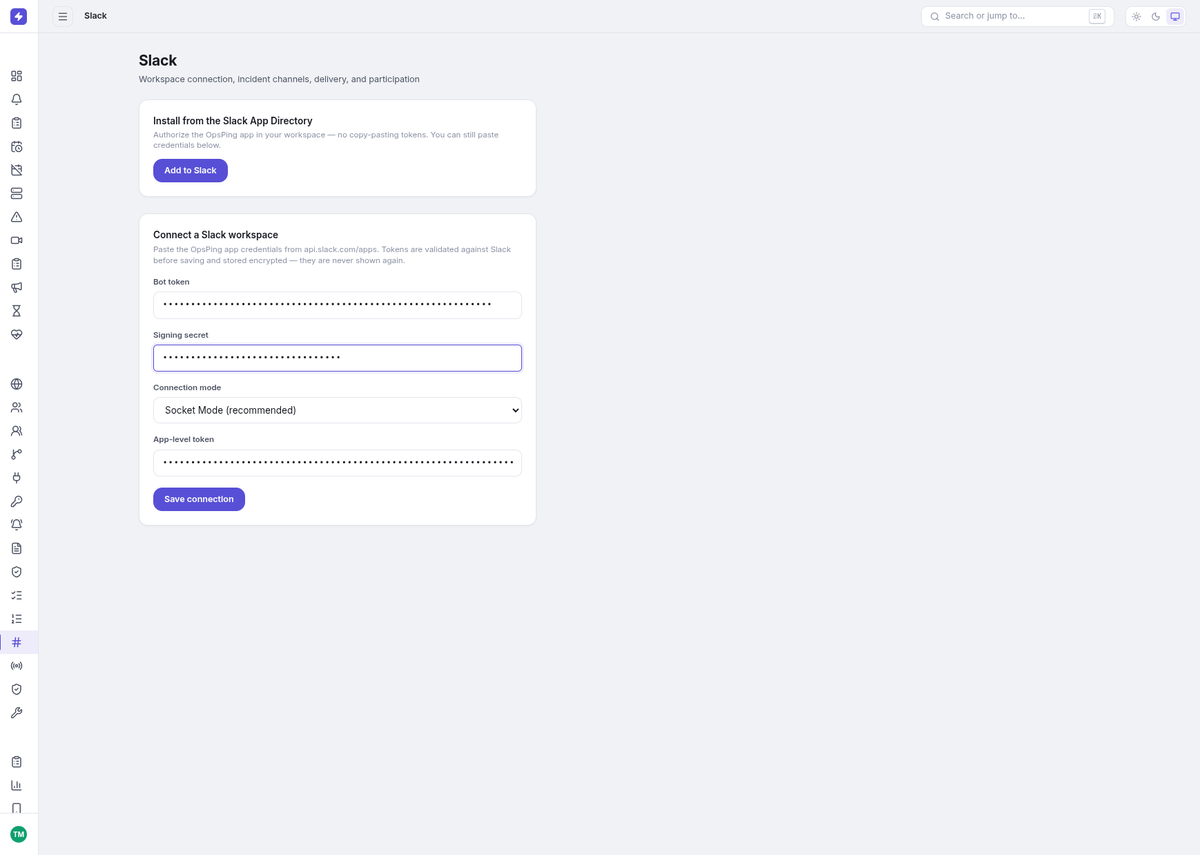
All three credentials into the connect form. They're validated against Slack before saving and stored encrypted. When it lands, the workspace card shows a green Configured pill with Socket Mode beside it.
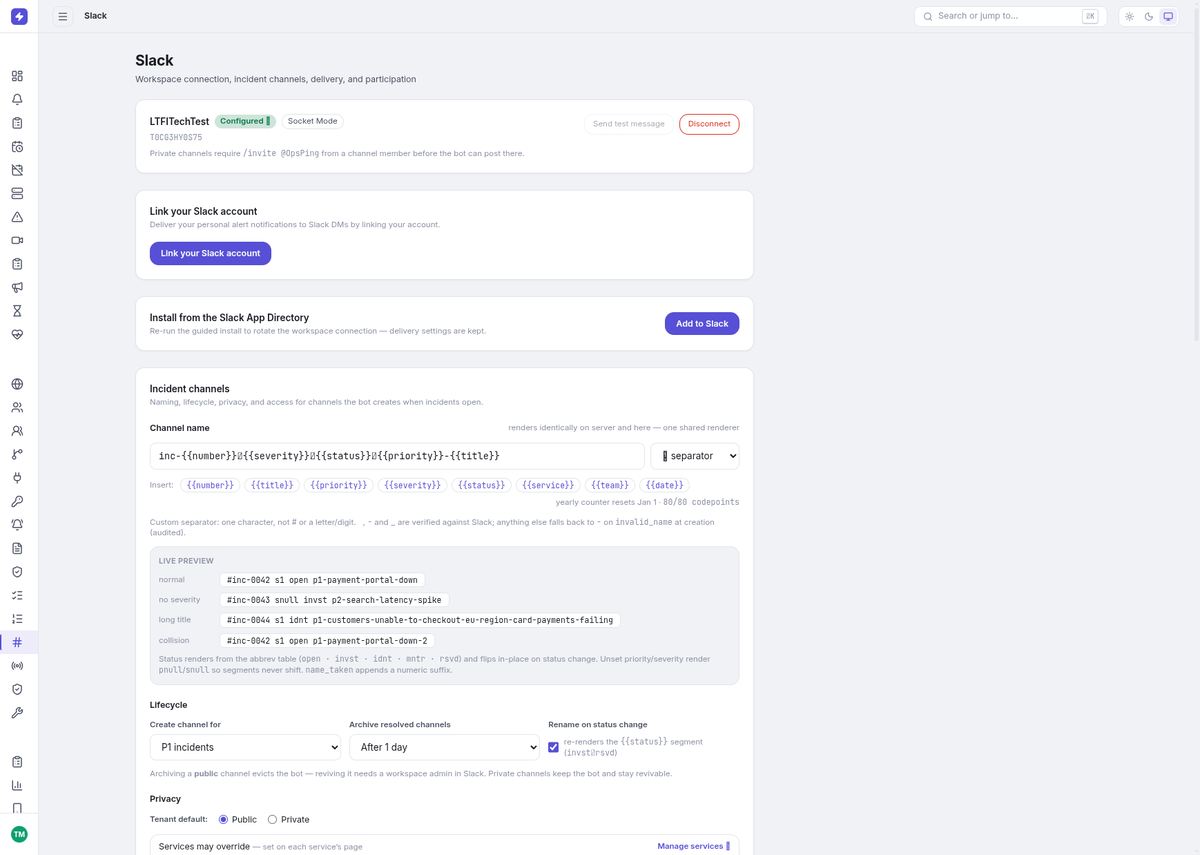
Configured with Socket Mode. The Link your Slack account card below is step 6. NoteSocket Mode means Slack pushes events, buttons, and slash commands to OpsPing over an outbound websocket the server opens — there is no public request URL and nothing to expose through your firewall.
-
Link your account
Slack actions run as a user, not as a mystery bot — so OpsPing needs to know which OpsPing account is behind each Slack handle. The normal path is automatic: run any OpsPing command in Slack. If your Slack profile email matches your verified OpsPing email, you're linked silently and you'll never see a prompt.
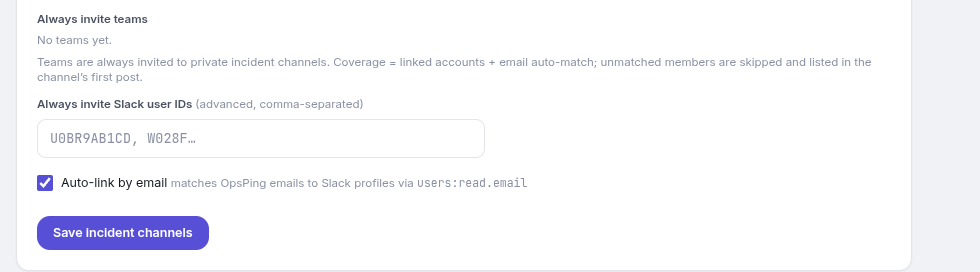
Auto-link by email matches OpsPing emails to Slack profiles; channel coverage counts linked accounts plus email auto-match. If the emails don't match, the bot replies to you privately (only you can see it) with a Link accounts button. Choose it, sign in to OpsPing if asked, and confirm: the page shows your Slack identity and avatar before anything changes. If that Slack account was already linked to a different OpsPing account, the page says so and asks before moving the link — and offers Not you? Switch account if Slack signed you in as the wrong person.
No button handy? The 6-character code still works as a fallback: generate a code from the Link your Slack account card on the Slack page and run:
/opsping link A1B2C3Codes live for 10 minutes. Once linked, Ack, Snooze, and Resolve from Slack are attributed to you — in the alert timeline, in reports, everywhere. Until you link, you can still see cards and command output; you just can't take actions on alerts.
Your face comes with youLinking imports your Slack avatar into OpsPing, and OpsPing keeps it fresh automatically whenever you change it on Slack. Teammates without a linked Slack account show initials instead of a photo.
TipIf
/opsping linksays the code is stale, generate a fresh one — codes expire after 10 minutes. -
Work alerts from cards and commands
Alerts delivered to Slack arrive as Block Kit cards with priority, service, message, and the controls your administrator enabled — normally Ack, Snooze, and Resolve, with configured snooze choices. Actions run as your linked user, and the card updates in place for the channel.
For everything else there are slash commands:
/opsping status   — private counts of open and acknowledged alerts by priority
/opsping oncall   — who's on call right now, per schedule
/opsping ack <alert> — acknowledge an alert by ID
/opsping link     — link your Slack account (step 6)
Incident work gets its own top-level commands (each also works as an
/opspingsubcommand, and admins can rename them on the Slack settings page):/incident <title> — declare an incident and open its channel, right where you're standing /page <search> — search teams, schedules, and responders, pick a target, and page it; the receipt message updates itself when someone acks /state <status> — move the channel's incident through your status lifecycle (aliases work) /sev <1-5> — change the incident's severity (S1–S5) from its incident channel; bare /sev shows the current severity /ren — retitle the incident channel; number, severity, and status segments stay put /merge — absorb a duplicate incident into this one, with a structured summary /promote — adopt the channel you're standing in as an incident channel /demote — detach a channel from its incident (optionally resolving it)If the title contains one clear service name, OpsPing links it to the incident so the service's configured participants can be invited. If more than one service matches, choose one from the reply's picker or skip linking.
Wargames (drills) get their own command, so you can rehearse paging without opening the console:
/drill                — choose a template and a service or escalation policy, preview
                    exactly who would be paged, then start the exercise
/drill status         — recent runs with Abort, End & grade, and Mitigated controls
/drill optout on     — stop drill pages reaching you (real paging is unaffected)
/drill schedules     — recurring drills, with a Disable control
Drill pages are labelled
[DRILL]and go out over push, voice and email only. The scenario text stays hidden until the run ends, so responders are graded on how they react, not on what they were told.Tip/opsping statusis the fastest standup in existence: paste the output, and the room knows what's open without anyone opening a browser. -
Run incidents in per-incident channels
Choose whether OpsPing creates incident channels for P1 incidents, P1 + P2 incidents, or never. For eligible incidents, the configured invitation policy chooses participants and status updates land in the channel. The archive policy controls whether and when resolved incident channels are archived.
NotePostmortems are generated from the audit trail, not from Slack chatter — but a well-used incident channel is where you'll reconstruct what actually happened. Write it down as you go.
-
Route alerts with delivery rules
Delivery rules choose the first matching Slack channel by team, priority, and source — for example, checkout P1s to
#checkout-opsand P4 platform alerts to#alerts-low. Unmatched alerts go to the default channel when one is configured; with no match and no default, no Slack card is sent. Rules select destinations rather than discard matches. Combine them with alert policies: policies decide what an alert is, delivery rules decide where it lands. -
Send service-linked alerts to the owning channel
Give a service its own Slack channel to send an additional alert card there when an alert is linked to that service and normal Slack delivery found a rule or default-channel target. Pasting an OpsPing service URL into Slack does not currently create a rich service-card unfurl.
Updating your Slack app
When an OpsPing update changes what your Slack app can do, OpsPing tells you: check the Slack page for a yellow banner on the workspace card. The fix is always a re-paste of the current manifest, and which extra step it needs depends on what changed.
- Commands changed — "re-paste". Copy the current manifest (use the Copy button, or Download — the JSON/YAML tabs match Slack's manifest editor, so JSON is the safe default) and paste it into api.slack.com → your app → App Manifest → Save Changes. No reinstall: renames and new commands ride along, since the
commandsscope is already granted.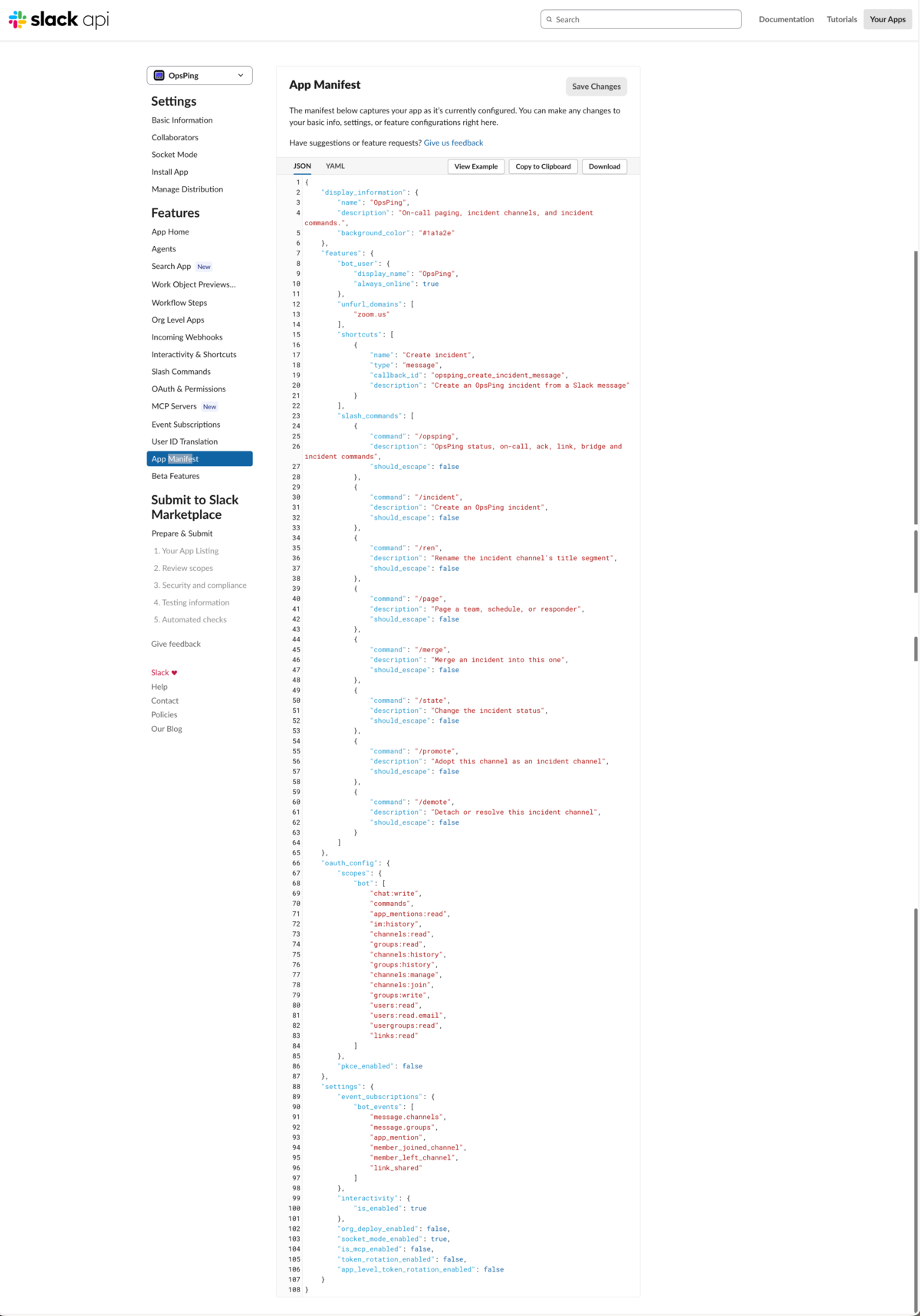
Slack's App Manifest editor. Paste the fresh manifest into the JSON tab and choose Save Changes — no reinstall needed. - Permissions changed — "permissions changed". Same steps, plus one: after saving the manifest, go to OAuth & Permissions → Reinstall to Workspace and approve the new scopes. New scopes can't ride the manifest alone; until you reinstall, Slack declines the interactions they cover.
Troubleshooting
- Commands silently missing after an OpsPing update. Slack only knows the commands your manifest declares. Fetch the current manifest again (Slack → Get your manifest — in the Commands card once a workspace is connected, on the 1. Create the Slack app card before) and re-paste it into your Slack app's App Manifest settings, then save. No reinstall needed: renames and new commands ride along with the manifest, since the
commandsscope is already granted. - Buttons and commands stopped working after a backend change that added scopes. New scopes can't ride the manifest alone — update the manifest and reinstall the app to the workspace. Until the reinstall, Slack declines the interactions the new scopes cover.
dispatch_failedoroperation_timeouton a command. Those mean Slack couldn't deliver the command to OpsPing at all — check the connection status on the Slack page before assuming the command is unknown.- The bot icon. Icons are set by hand: api.slack.com → your app → Basic Information → Display Information → App Icon. A manifest cannot carry an icon.