Saved searches
Save an alert queue configuration once and reopen it from Alerts. Saved team views preserve status, priority, integration, ownership, search, grouping, and sort for the current team scope.
Before you start
- A non-stakeholder account with access to the current team. Team members can see its saved views; the creator or an admin can edit or delete an owned view.
- Familiarity with Alerts filters — see Alert triage.
-
Build and save the view from Alerts
Open Alerts, configure the queue, then choose Save view and give it a recognizable name.
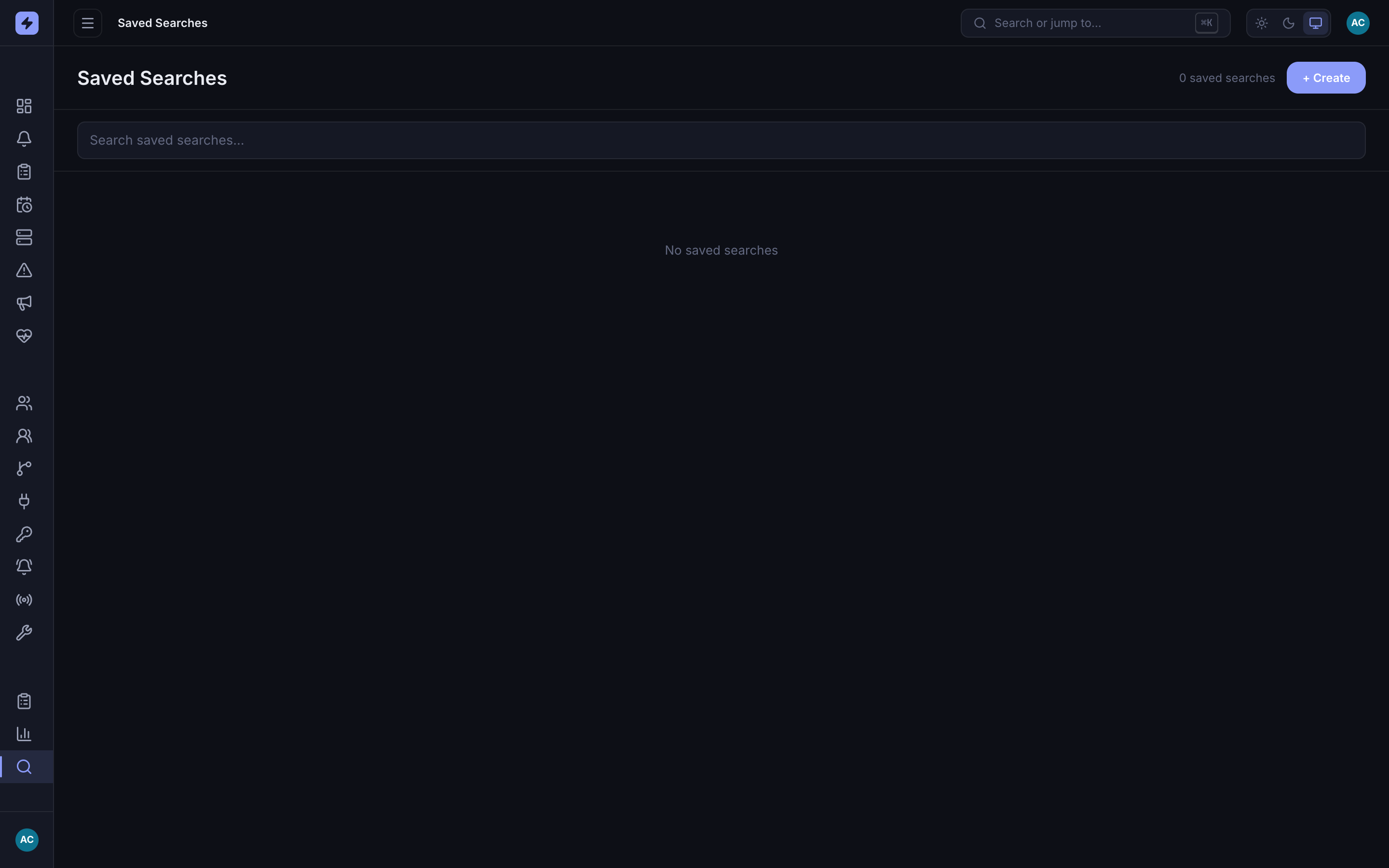
Save the current structured queue state rather than writing a free-form search expression. -
Reopen it from Saved team views
Use Saved team views in the Alerts header to apply a stored view. The view restores the queue's structured controls in one action.
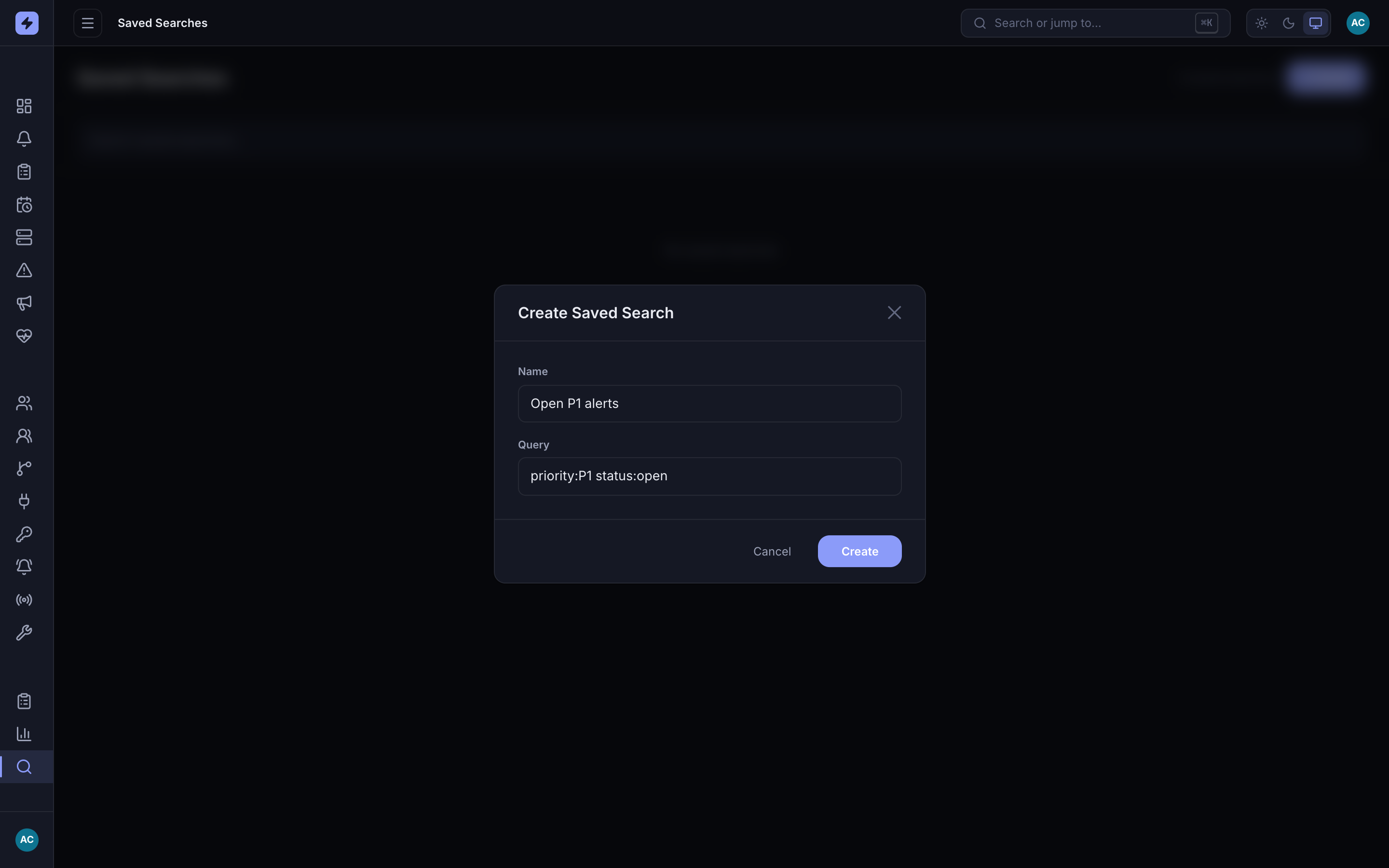
Name a useful queue configuration such as Open P1 alerts and save it for the team. -
Manage names and ownership
The Saved Searches page lists the stored name and serialized query with Edit and Delete. Its heading is not a run link; open the view from Alerts → Saved team views.
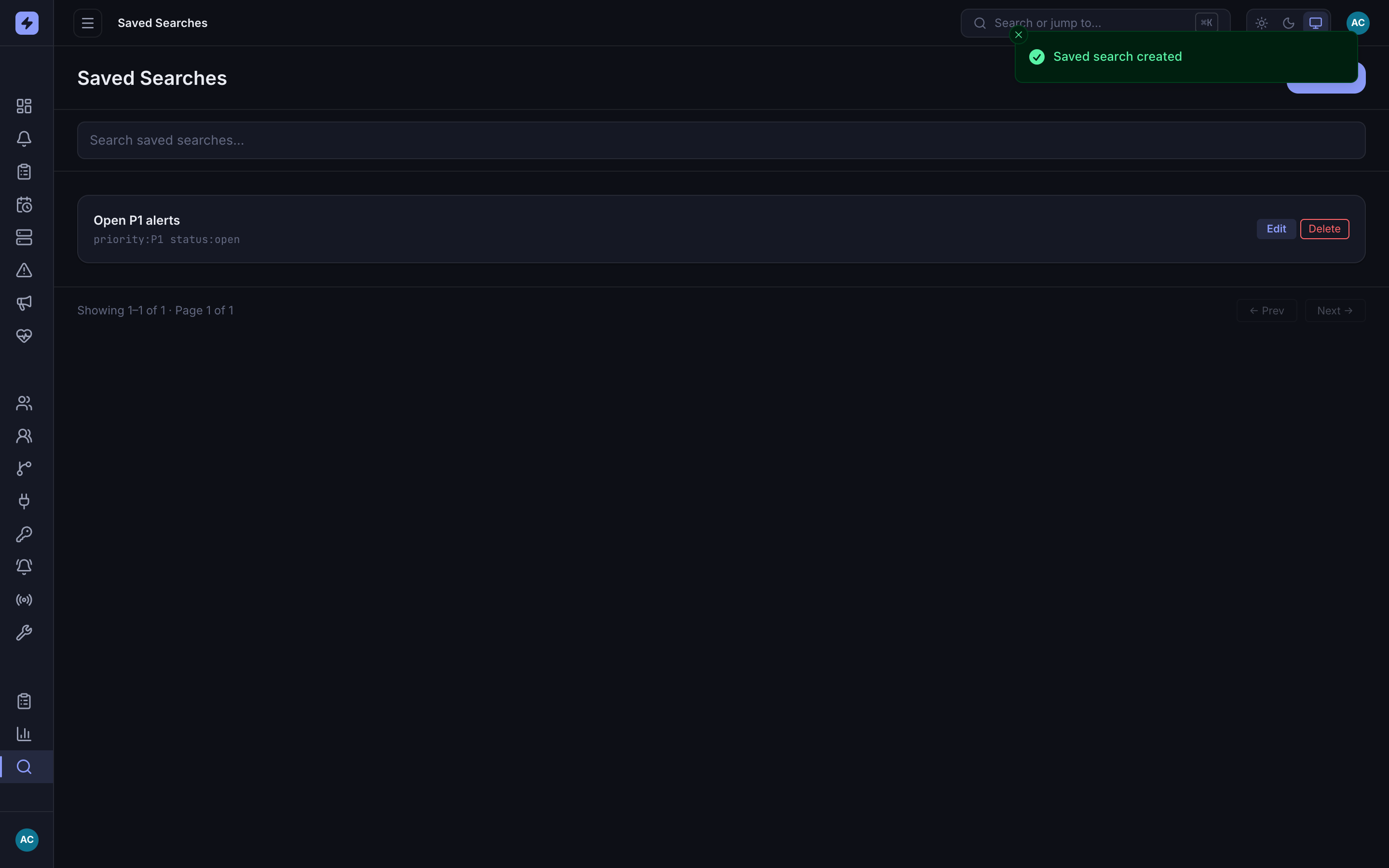
Saved Searches manages stored views; Alerts is where you apply them. TipBuild the queue visually in Alerts, verify the results, then save it. Do not hand-author legacy strings such as
priority:P1 status:open.