Notifications & Channels
Delivery is the product. Escalation policies choose escalation recipients; per-user notification rules independently match new alerts and dispatch to verified channels. This guide covers push, voice, email, rule timing, channel verification, and delivery preferences.
- The mobile app installed and configured, per Mobile setup — that's your push channel.
- Schedules and escalation policies in place, per Schedules & escalations.
-
Understand how delivery works
Escalation policies select who is next in the escalation chain. Separately, every enabled per-user notification rule is evaluated for its owner when a new alert is created. Use an on-call schedule criterion when a rule should notify someone only while they are covering that schedule.
Push is built to wake you up:
- Per-severity sounds — P1 sounds different from P3, so you know whether to reach for the phone before you look at it.
- iOS critical alerts — P1 push breaks through silent mode and Focus, with Apple's critical-alert entitlement. Wearing an Apple Watch? See why pages may ping your watch instead of ringing your phone.
- Android DND bypass — high-priority alarms ring through Do Not Disturb.
There is no automatic fixed push → voice → email ladder. Build the workflow explicitly: push is the app path, a voice channel can be intentionally disruptive, and email carries durable context. Rule delays determine the order.
-
Write notification rules
Notification rules are per-user and can notify their owner even when that person is not an escalation recipient. On the admin page, select a user to view and edit rules. Each rule has three parts:
- Criteria — priority, source, team, time window, and optionally an on-call schedule gate.
- Channels & delay — verified targets and the wait before dispatch. A delayed voice rule can be cancelled by a quick acknowledgement.
- Repeat — optionally re-fire the rule until the alert is acknowledged.
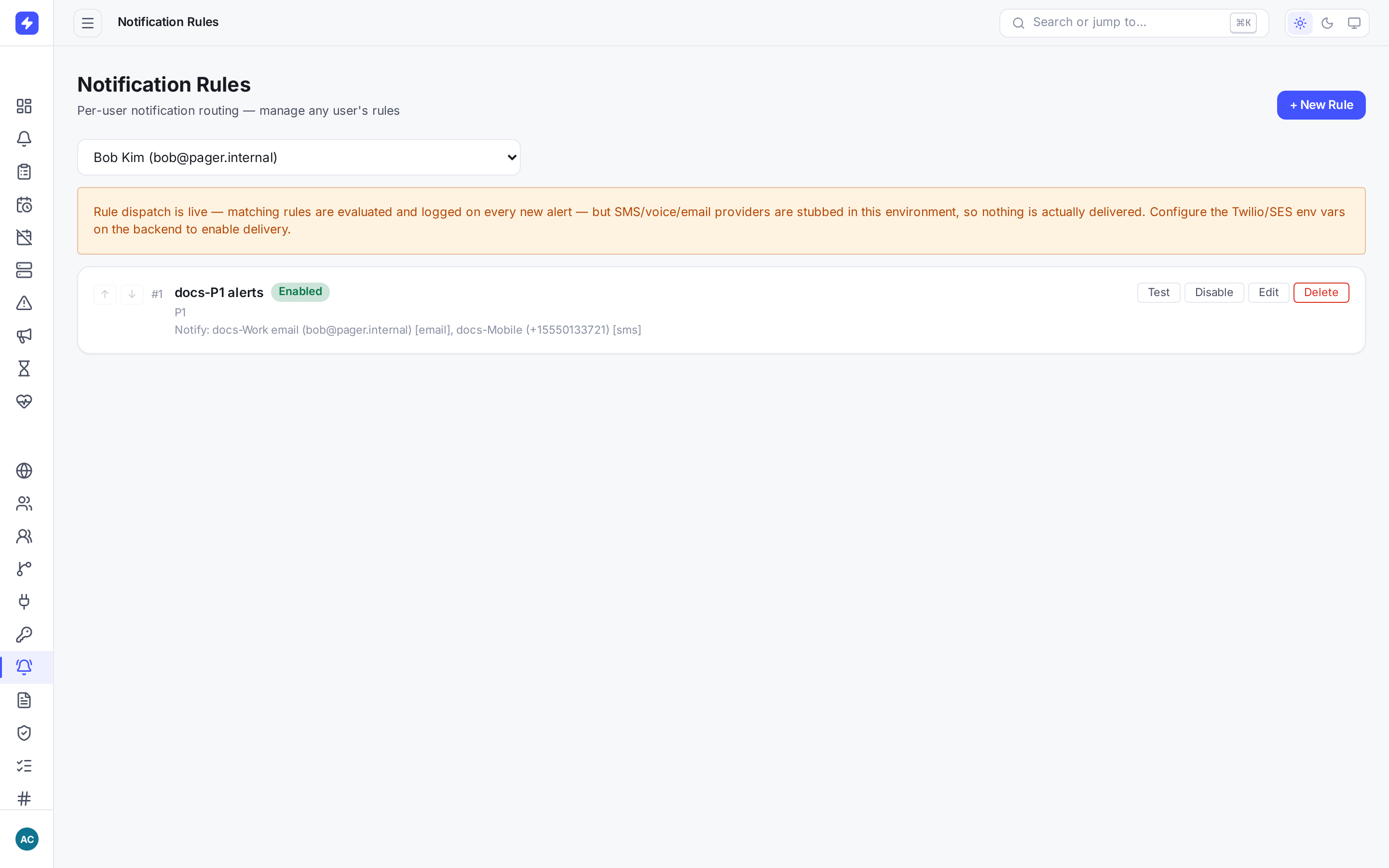
Per-user notification rules decide which alerts reach which channels. Select a user to view and edit their rules. TipA practical P1 ladder: push immediately, then a voice call after a short delay. Use email for lower-priority alerts and durable context. This keeps the urgent path loud without sending every event to every channel.
-
Add and verify channels
Channels are verified delivery targets attached to a user: voice numbers and email addresses. Adding one sends a verification code to that destination, and the channel goes live only after the code is confirmed. Rules that target an unverified channel are skipped, so a typo fails safe instead of paging a stranger.
Real alert voice calls read the alert summary and accept 1 to acknowledge, 2 to close, and * to repeat the options. The called responder is freshly checked for alert write access when the key is pressed; changed alerts are not acted on. Drill calls retain their drill-specific interaction. If
TWILIO_VOICE_TWIML_URLis configured, that custom TwiML URL remains in control and the built-in interaction is not used.Legacy SMS channelsNew channel setups offer voice and email only. Existing SMS channels remain visible so their owners can remove or migrate them, and the API retains the legacy type for compatibility.
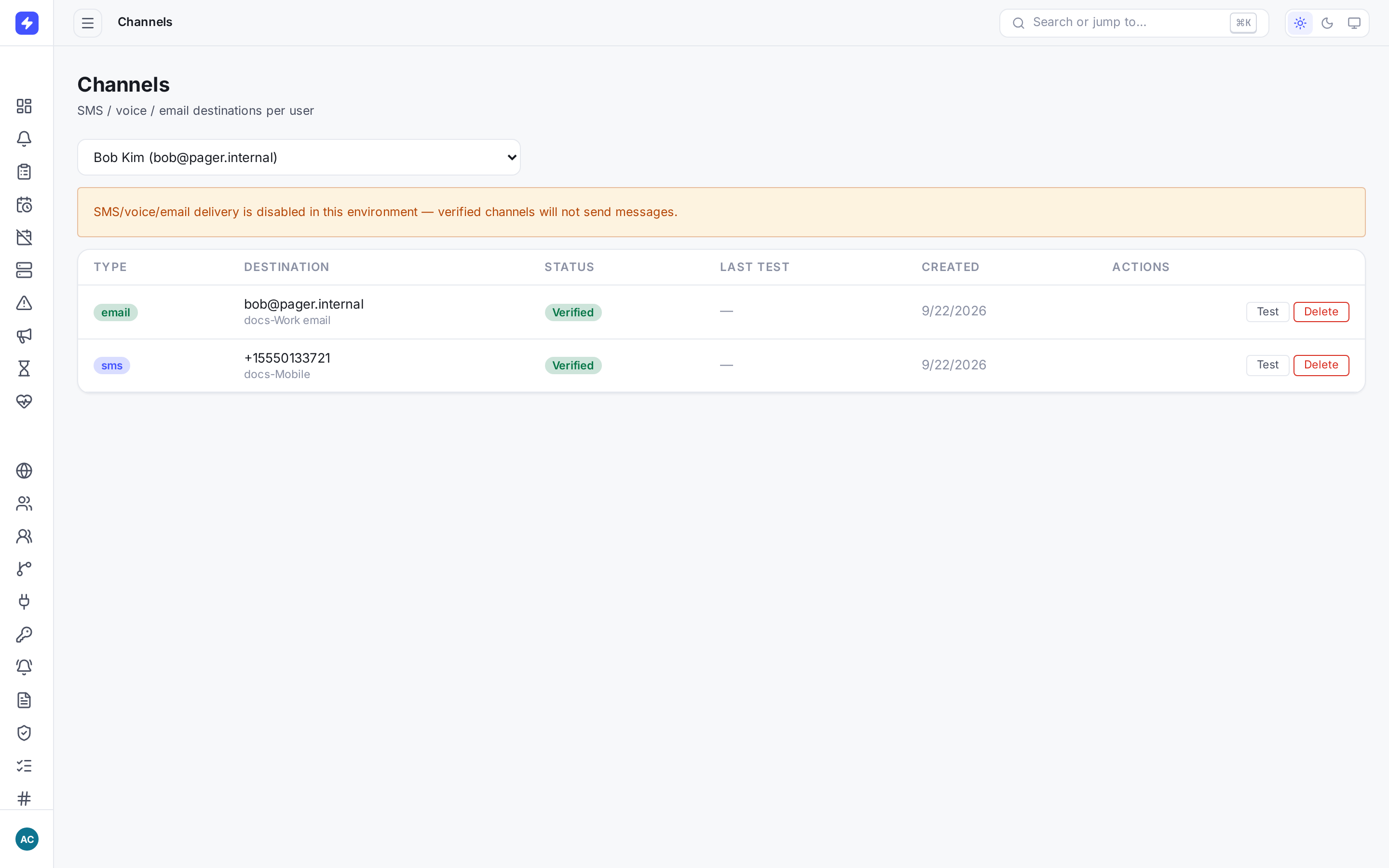
Verified channels are explicit delivery targets. The legacy SMS row remains visible, while new channels offer voice or email. -
Why OpsPing does not use SMS
On-call responders need the alert payload, runbook context, and a connected device or laptop to investigate. A short text message does not remove that requirement.
SMS also varies materially by region: some carriers restrict links or message content, filtering is opaque, consent and opt-out handling differ, and US delivery adds A2P registration and campaign administration. Those constraints make the channel harder to operate predictably without improving the response workflow.
OpsPing therefore invests in rich push notifications as the primary path, voice calls as the intentionally disruptive fallback, and email as the durable contextual channel.
-
Understand P1-only filtering and mute
Current delivery preferences provide two distinct controls:
- P1 alerts only filters lower-priority notifications. It is not a scheduled quiet-hours window, and filtered notifications are not queued for morning delivery.
- Mute until suppresses delivery, including P1, until the timestamp expires. Use it only when the person is genuinely unavailable.
WarningMuting does not transfer on-call coverage. Arrange an override or time-off coverage before going unavailable. Mobile Settings → Notifications manages device permission, test pages, Watch guidance, and shift reminders; admins manage account-level P1-only preferences from Users → Notify.
-
Route alerts into Slack
Slack is where your team already argues about the outage, so OpsPing delivers there too. Install the Slack app (OAuth or paste-in install), then write delivery rules that route matching alerts to a channel. Each alert lands as a Block Kit card with Ack, Snooze, and Resolve buttons — no context switch to the console for the routine moves.
Buttons act as a linked user, not an anonymous bot. Each person runs
/opsping linkonce to tie their Slack account to their OpsPing account, after which an ack from Slack is their ack — same audit trail, same escalation ladder.The slash commands cover the rest:
/opsping status,/opsping oncall, and/opsping ackwork in any channel. Incidents also get their own Slack channel — responder invites, resolve summaries, and archive policies included. Full setup and options are in the Slack guide; the marketing-level pitch is on the Slack ChatOps page.