Follow status as a stakeholder
Not everyone needs to be paged — some people just need to know what's on fire. Stakeholders get a free, non-paging tier built around the Status tab: a live view of incidents, service health, maintenance, and announcements.
- An OpsPing account with the stakeholder role (your admin assigns this — see Teams & administration).
- The mobile app installed and signed in, per Mobile setup.
Responders see five tabs (Alerts, On Call, Health, Status, Settings) and get paged. Stakeholders see just Status and Settings — you're never paged, and the paging-specific tabs simply don't appear for you.
-
Open the Status tab
The Status tab is the stakeholder home — it answers "is everything okay?" at a glance. From the top down it shows:
- Overall status banner — green when all systems are operational, red when there's a major incident, with a count of how many are active and since when.
- Active incidents — each open incident's name, priority, summary message, and start/update times. These cards are read-only and do not open responder detail.
- Services — every tracked service and whether it's Operational, Degraded, or Down.
- Maintenance — windows in progress or scheduled in the next 24 hours.
- Announcements — broadcasts from your team (see Announcements).
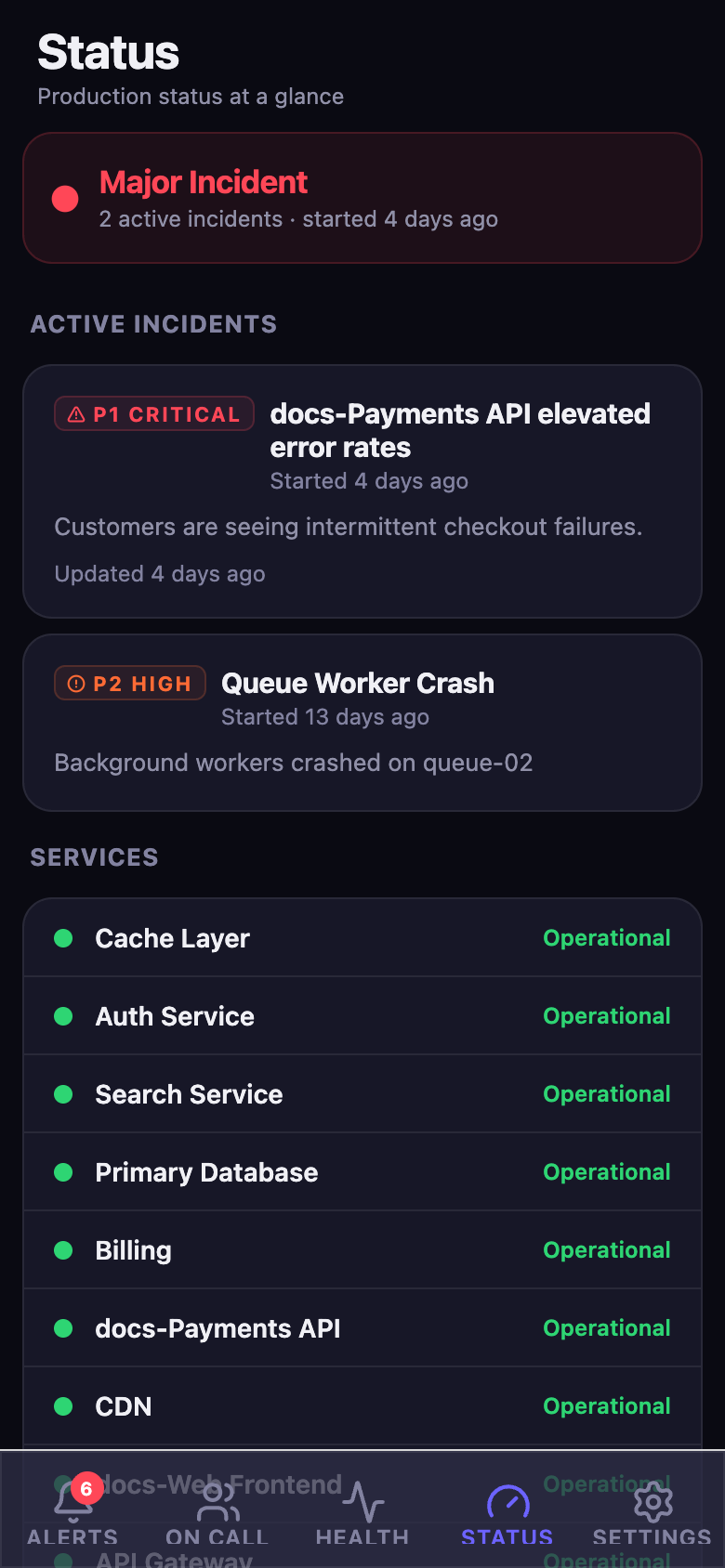
The Status tab during a major incident: the banner turns red and counts active incidents, followed by the incident list, service health, maintenance, and announcements. -
Read the incident summary
Read an incident's name, priority, summary message, and start/update times directly on Status. Stakeholder accounts cannot open responder incident detail, linked alerts, or the internal timeline.
-
Check service health
The Services list is the health dashboard: each service shows Operational, Degraded, or Down. When you're chasing "is X broken for everyone or just me?", this is the answer — Degraded or Down means it's not just you.
-
Get notified without being paged
Stakeholders can receive announcement pushes and incident lifecycle notifications when the incident is configured to notify stakeholders, subject to device permission and delivery preferences. They are not paged as alert responders.
TipIf you need to work alerts, ask an admin to change your account to User or another appropriate responding role.